Black Mixture
patreon
Hey Black Mixture Fam! 👋
Thank you so much for being here and for your continued support! We’re thrilled to share an exclusive early release of our latest tool in the V3 workflow series: using Regional Prompting with Flux in ComfyUI.
Our new Regional Prompting version in ComfyUI adds extra control over image prompts by allowing you to focus on specific areas. With four adjustable regions, you’ll have the power to define prompts and effects in selected parts of your image for more precision. While this workflow is in early release and will see updates, it’s already packed with potential. You can grab it now here and in our V3 workflow download!
***This version requires an additional custom node to be installed. It might not show up from the Install Missing Custom Nodes option, so instead click on "Install via Git URL" and paste in the link provided. Then restart your ComfyUI and it should be installed.
Regional Prompting Custom Node⤵
https://github.com/Davemane42/ComfyUI_Dave_CustomNode
1. Loading Your Models & Setting Up Prompts
First things first: Install Load your Flux model and choose your add-ons in the"Pick Your Add-Ons" section. You can review the V3 text & video guide for details on each section and their features.
Pro Tip: Turn off the upscaler when generating initial images and leave the seed value to "fixed". You can turn back on the upscaler after you have an initial image you like. Then hit queue and ComfyUI will pick up where it left off in the workflow.
2. Fine-Tuning Regional Controls
Choose your regions: You’ll see four selectable regions, each with its own prompt settings. Choose a region by adjusting the index value (0, 1, 2, or 3) to switch between them.
Tip: Start simple with one or two regions – it helps to get a feel for how each prompt influences different areas!
X, Y, Width, and Height: Each region’s size and position can be fine-tuned with these values. Play around with them to direct attention to specific parts of your image.
Experiment with values: Move the region boundaries to test where your adjustments best enhance your image.
3. Setting Strength Values
Balancing strength: In this early release, strength values between 0.5 and 1.2 generally produce good results, but it’s worth experimenting since each image + prompt reacts differently.
Advanced Tip: For more contrast, try setting one region to a lower strength (around 0.5) while pushing another up closer to 1.2 to create a dynamic interplay between regions.
4. Upscaling & Saving
Final touches: Once you’re happy with your prompt regions and settings, you can upscale and export the final image.
Check your final output: Before saving, ensure each region reflects the intended adjustments – it might take a few tries, but the results can be incredibly rewarding!
We’re so grateful for each of you supporting Black Mixture and giving us the chance to create these resources for you. Please feel free to experiment with this workflow, leave comments, or share any cool results! This is just the beginning – as we update and refine, you’ll be the first to get access.
Happy creating, and can’t wait to see what you come up with!


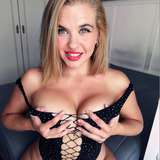
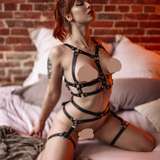
At the moment the LoRAs are a bit tricky with regional prompting. They technically work but not as well as in regular prompting. In this post there are some example photos using Chriselle and I with our trained LoRA, but I think the fidelity drops significantly. I recommend using regional prompting to get a base composition and then using that generation with img-to-img in the regular prompting version with your LoRA to get a better result. Regional Prompting is extremely experimental and with more testing I think our future update will support LoRAs better.
Can we add loras there?